
Create and Manage Discounts
Learn how to create and edit manual discounts from the Inventory Management module.
This section gives you step-by-step instructions for adding, updating, removing discounts from your inventory.
Create promotions for your Online Store or Checkout by creating discounts.

Search for a Specific Discount
If you have already saved a number of discounts on the list and you would like to search for specific discount information you can use the Search feature built-in every tab of Inventory Management.
- Type in your search keyword in the search field to start looking for a specific discount.
- Search entries can be by Discount Code and Discount Name.
Create a Discount
- Head to the Inventory page of your Merchant Portal, click the Discounts tab.
- Click the Add Discount button to open the form.

| Discount Code | Enter a discount code as a unique identifier for your discount to create. |
| Discount Name | Enter a name for your discount. |
| Discount Description | Enter a brief description of your discount |
| Discount Type | Select the type of dicsount you would like to create. You have (2) options: By Percentage or By Flat Rate. |
| Amount | If the $ is selected, the Amount is disabled. If % is selected, the Amount is enabled and value is required. The amount entered here is the discount amount. |
| Percentage | If the $ is selected, the Amount is disabled. If % is selected, the Percentage is enabled and value is required. The number entered here is the discount. |
| Location | Refer to the location where the discount will be available. |
| Apply to | Refers to whether in items or by categories the discount will be applied. |
| Category | Select the categories you would like to apply the discount. The availability of this field varies based on the value of Apply to. |
3. Click the Add new discount button to save the discount created.
4. Once the discount is created, the new discount should appear on the list.
Update a Discount
- Head to the Inventory page of your Merchant Portal, click the Discounts tab.
- Click the pencil icon under the Actions column of the existing discount.
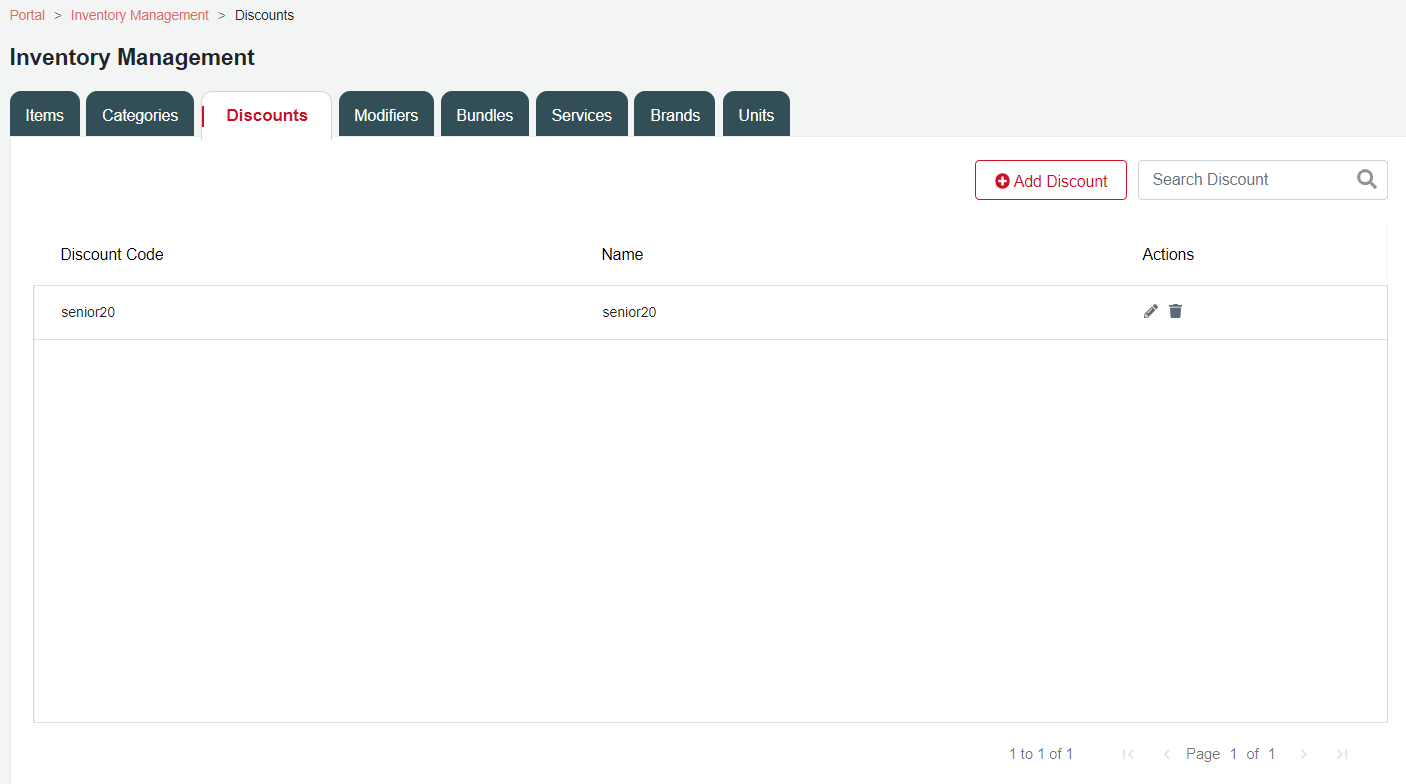
3. Once you have made your changes on the Discount form, click the Update discount button.
Delete a Discount
- Head to the Inventory page of your Merchant Portal, click the Discounts tab.
- Click the trash bin icon under the Actions column of an existing discount.
A confirmation message will appear, click "YES" to delete the discount. Otherwise, click "NO".
NOTE: The deleted discount should no longer be available or visible in the Discounts List.